ติดตั้ง NamLauncherInstall NamLauncher
ดาวน์โหลดได้จาก หน้าดาวน์โหลด หรือ Microsoft Store (Windows) มีแพ็กเกจ Linux ให้ทั้ง AppImage, deb, rpm, Flatpak และ AUR (namlauncher-bin) ขั้นตอนละเอียดของแต่ละระบบอยู่ใน คู่มือติดตั้ง
Download from the download section or the Microsoft Store (Windows). Linux has AppImage, deb, rpm, Flatpak and AUR (namlauncher-bin). Step-by-step instructions for every system are in the install guide.
ถ้าเวอร์ชันของคุณต่ำกว่า 1.3.0 ให้ลบแล้วดาวน์โหลดใหม่ เพราะระบบอัปเดตของเวอร์ชันเก่ามีบัคIf your version is older than 1.3.0, uninstall it and download again, because the old updater has a bug.
แก้ปัญหา: เปิดเกมไม่ได้Troubleshooting: the game will not start
ขั้นแรกเสมอ: อัปเดตลันเชอร์เป็นเวอร์ชันล่าสุด ปัญหาหลายอย่างด้านล่างแก้ไปแล้วในเวอร์ชันใหม่
Always start here: update to the latest launcher. Many of the errors below are already fixed in newer versions.
Managed Java runtime is incomplete; missing: msvcp140.dll, vcruntime140.dll ...
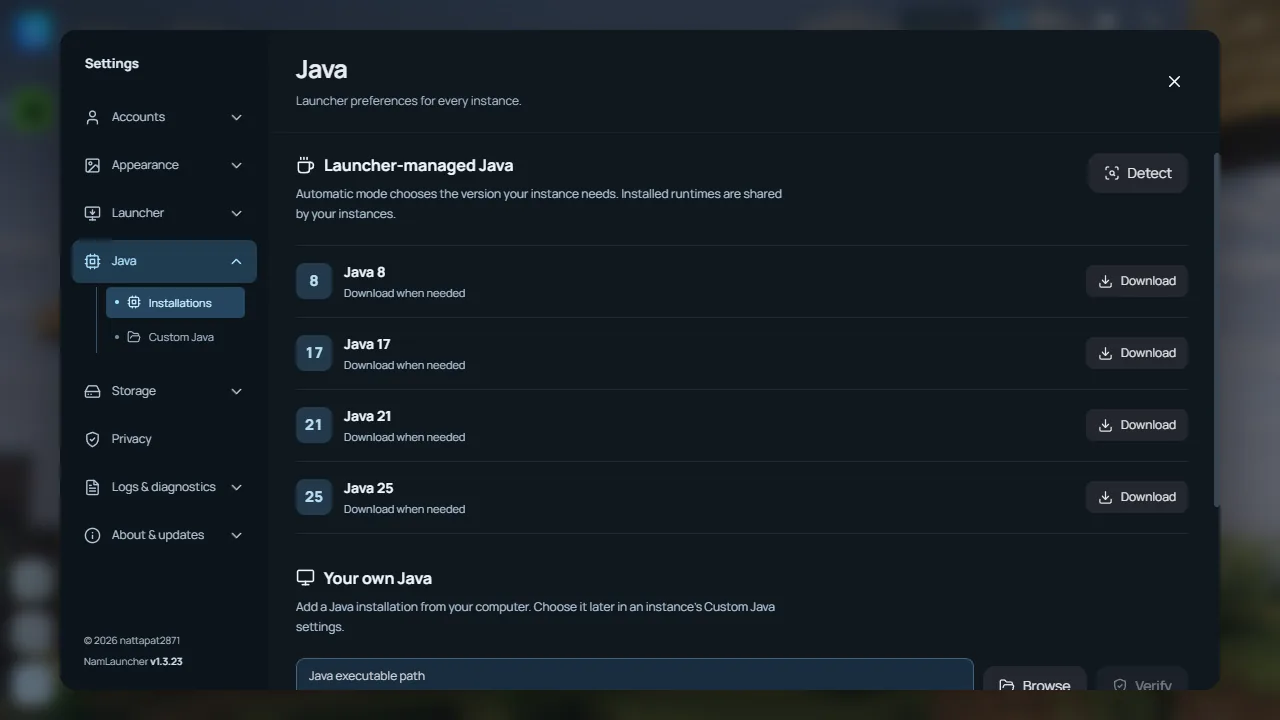
Java ที่ลันเชอร์ดาวน์โหลดไว้ไม่ครบ มักเกิดในรุ่น Microsoft Store แก้แล้วตั้งแต่ 1.3.21 ให้อัปเดตลันเชอร์ ถ้ายังเกิด ไปที่ Settings > Java แล้วดาวน์โหลด Java เวอร์ชันนั้นใหม่ และติดตั้ง Microsoft Visual C++ Redistributable (x64)
The Java runtime the launcher downloaded is missing files, usually on the Microsoft Store build. Fixed in 1.3.21, so update the launcher. If it continues, re-download that Java in Settings > Java and install the Microsoft Visual C++ Redistributable (x64).
spawn EPERM / spawn UNKNOWN / EPERM ucrtbase.dll
Windows หรือแอนติไวรัสไม่ให้ลันเชอร์เปิดโปรแกรม (Java หรือ PowerShell) แก้แล้วใน 1.3.23 สำหรับกรณีที่เกมเปิดอยู่แล้ว ถ้ายังเกิด: เพิ่มโฟลเดอร์ข้อมูลของ NamLauncher เป็นข้อยกเว้นในแอนติไวรัส ปิด Controlled folder access ชั่วคราว หรือรีสตาร์ทเครื่องแล้วลองใหม่
Windows or antivirus refused to let the launcher start a program (Java or PowerShell). Fixed in 1.3.23 for the case where the game is already running. If it continues, add the NamLauncher data folder as an antivirus exclusion, turn off Controlled folder access for a moment, or restart the PC and try again.
Minecraft did not create its visible window before the launch wait timed out.
ลันเชอร์รอหน้าต่างเกมนานเกิน 20 นาที ถ้าเกมเปิดอยู่จริง ตั้งแต่ 1.3.22 จะไม่ถือว่าล้มแล้ว ถ้าเกมไม่ขึ้นจริง: ปิดเกมค้างใน Task Manager อัปเดตไดรเวอร์การ์ดจอ และลองเปิดแบบไม่มีม็อดหนัก ๆ
The launcher waited more than 20 minutes for the game window. Since 1.3.22 a game that is actually running is no longer treated as failed. If the game really never appears, end stuck Java processes in Task Manager, update the graphics driver, and try without heavy mods.
[authlib-injector] [ERROR] Invalid option: disabled
บัญชีออฟไลน์บน Windows ที่ตั้งภาษาตุรกีเปิดเกมแล้วปิดทันที แก้แล้วใน 1.3.22 ให้อัปเดตลันเชอร์
Offline accounts on Windows set to Turkish closed right away. Fixed in 1.3.22, so update the launcher.
Unrecognized option: --add-opens=java.base/java.lang.invoke=ALL-UNNAMED
Minecraft เวอร์ชันเก่าที่ใช้ Java 8 (เช่น snapshot 20w14infinite หรือ beta) ได้ตัวเลือกของ Java รุ่นใหม่ไป แก้แล้วใน 1.3.23 ถ้าคุณใส่ Java arguments เองใน Settings ให้ลบ --add-opens ออกสำหรับเวอร์ชันที่ใช้ Java 8
Old Minecraft versions that run on Java 8 (for example snapshot 20w14infinite or betas) received an option only newer Java understands. Fixed in 1.3.23. If you added custom Java arguments in Settings, remove --add-opens for Java 8 versions.
Error: Could not create the Java Virtual Machine.
Java เริ่มทำงานไม่ได้ ดูบรรทัดใต้ข้อความนี้ใน log ว่าตัวเลือกไหนผิด ส่วนใหญ่มาจาก Java arguments ที่ใส่เอง หรือ RAM ที่ตั้งไว้เกินกว่าเครื่องมี ให้ปิด custom Java arguments และเปิด RAM อัตโนมัติ
Java could not start. The line below this message in the log names the bad option. It usually comes from custom Java arguments or more RAM than the PC has. Turn off custom Java arguments and turn on automatic RAM.
Java ตอบช้า / ตรวจสอบ Java ไม่ผ่านJava check timed out or failed
ครั้งแรกที่รัน Java บางเครื่องช้าเพราะแอนติไวรัสสแกนไฟล์ ลองกด Launch อีกครั้ง ถ้ายังไม่ผ่าน ไปที่ Settings > Java แล้วดาวน์โหลด Java เวอร์ชันนั้นใหม่
The first Java start can be slow while antivirus scans it. Press Launch again. If it still fails, re-download that Java in Settings > Java.
แก้ปัญหา: เกมแครชTroubleshooting: the game crashes
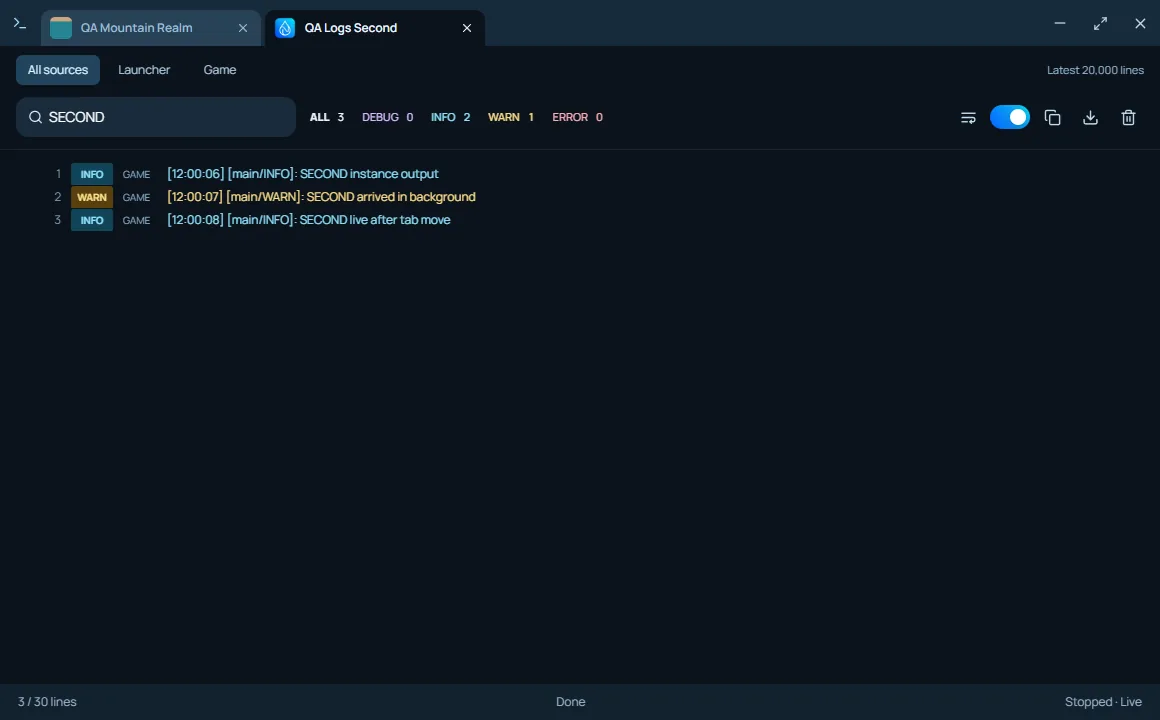
เมื่อเกมปิดเอง ลันเชอร์จะอ่าน crash report และแสดงข้อความ NamLauncher diagnosis: ที่บอกสาเหตุ ด้านล่างคือข้อความที่เจอบ่อย
When the game closes, the launcher reads the crash report and shows a NamLauncher diagnosis: line with the cause. These are the common ones.
RAM ไม่พอ (Minecraft ran out of memory) / exit code -805306369Out of memory (Minecraft ran out of memory) / exit code -805306369
RAM ที่ให้เกมน้อยกว่าที่ม็อดแพ็กต้องใช้ เปิด RAM อัตโนมัติ หรือเพิ่ม RAM ใน Instance settings > RAM & Java ตามที่ลันเชอร์แนะนำ
The game had less RAM than the modpack needs. Turn on automatic RAM, or raise RAM in Instance settings > RAM & Java to the amount the launcher recommends.
Windows หน่วยความจำระบบหมด (system commit/native memory)Windows ran out of system memory (system commit/native memory)
ปิดโปรแกรมที่ไม่ใช้ เปิด paging file แบบ System managed ตรวจพื้นที่ดิสก์ว่าง แล้วรีสตาร์ท อย่าเพิ่ม RAM ให้เกม เพราะจะทำให้ปัญหานี้เกิดง่ายขึ้น
Close unused apps, set the paging file to System managed, check free disk space and restart. Do not raise Minecraft RAM, because that makes this worse.
0xc0000005 (native access violation)(native access violation)
โค้ดนี้อย่างเดียวไม่บอกสาเหตุ ส่วนใหญ่มาจากไดรเวอร์การ์ดจอ เชเดอร์ หรือม็อดที่ใช้โค้ด native อัปเดตไดรเวอร์ ลองปิดเชเดอร์และม็อดเรนเดอร์ แล้วส่งไฟล์ hs_err_pid*.log ในโฟลเดอร์เกมมาใน Discord
This code alone does not name the cause. It is usually the graphics driver, shaders, or a mod with native code. Update the driver, try without shaders and rendering mods, and share the hs_err_pid*.log file from the game folder in Discord.
แครชในไดรเวอร์การ์ดจอ / OpenGL / หน่วยความจำกราฟิกCrash in the graphics driver, OpenGL or graphics memory
อัปเดตหรือติดตั้งไดรเวอร์การ์ดจอใหม่จากเว็บผู้ผลิต (NVIDIA, AMD, Intel) โน้ตบุ๊กที่มีการ์ดจอสองตัวให้ตั้ง Java ให้ใช้การ์ดจอแยก แล้วลองโดยไม่ใช้เชเดอร์ สำหรับ Forge ถ้าหน้าต่างโหลดเปิด OpenGL ไม่ได้ ลันเชอร์จะปิด early loading window ให้เองแล้วครั้งต่อไปจะเปิดได้
Update or reinstall the graphics driver from NVIDIA, AMD or Intel. On laptops with two GPUs, set Java to use the dedicated GPU, then try without shaders. On Forge, if the loading window cannot get OpenGL, the launcher turns off the early loading window so the next launch opens.
แครชใน FreeType ตอนโหลดฟอนต์Crash in FreeType while loading a font
มักเกิดจากรีซอร์สแพ็กหรือฟอนต์ที่เสียหรือไม่เข้ากัน ปิดรีซอร์สแพ็กหรือฟอนต์ที่เพิ่งเพิ่ม แล้วลองใหม่
Usually a damaged or incompatible font or resource pack. Turn off the recently added font or resource pack, then retry.
Minecraft exited with code 1 โดยไม่มี crash reportMinecraft exited with code 1 and no crash report
ดูบรรทัด ERROR สุดท้ายใน log ของเกม ข้อความเกี่ยวกับ Realms หรือ user properties ในบัญชีออฟไลน์เป็นเรื่องปกติและไม่ใช่สาเหตุ ส่วนใหญ่มาจากม็อดที่ชนกัน ลองปิดม็อดครึ่งหนึ่งเพื่อหาตัวที่เป็นปัญหา
Check the last ERROR line in the game log. Realms or user-properties errors on offline accounts are normal and not the cause. It is usually conflicting mods, so turn off half of them at a time to find the one.
แก้ปัญหา: ม็อดTroubleshooting: mods
ม็อดทำมาสำหรับ Minecraft เวอร์ชันอื่นMods target another Minecraft version
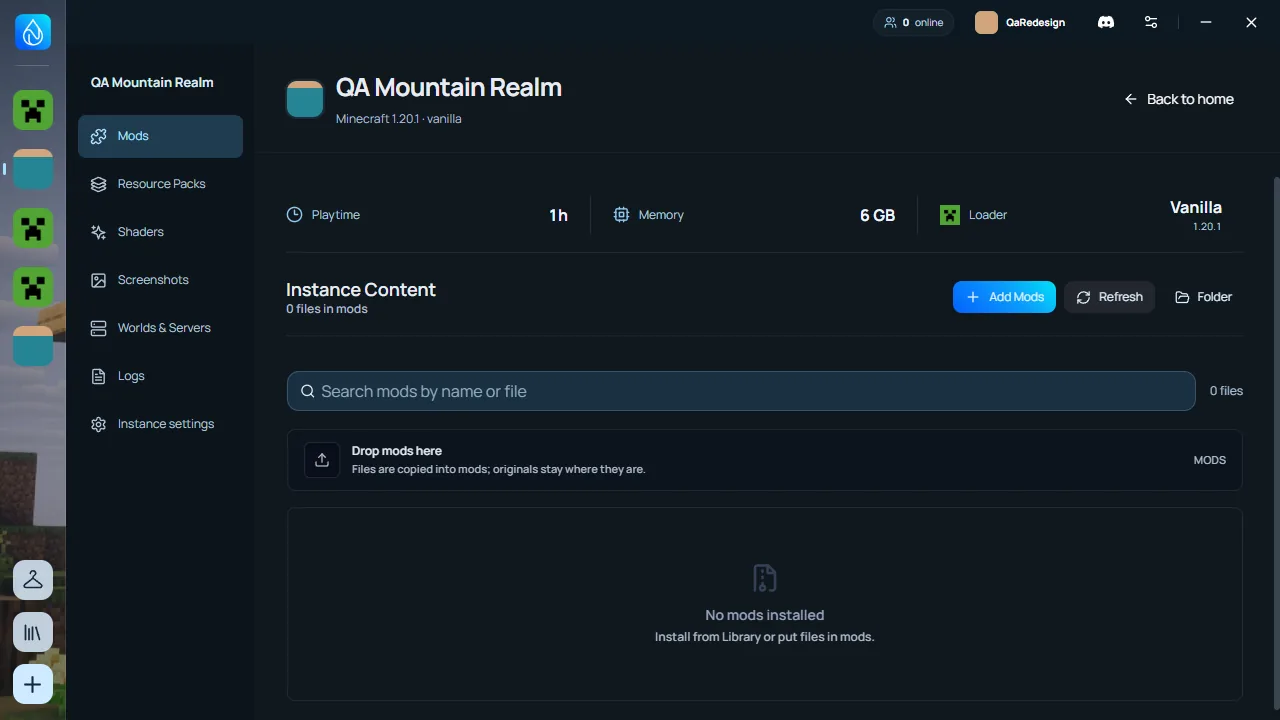
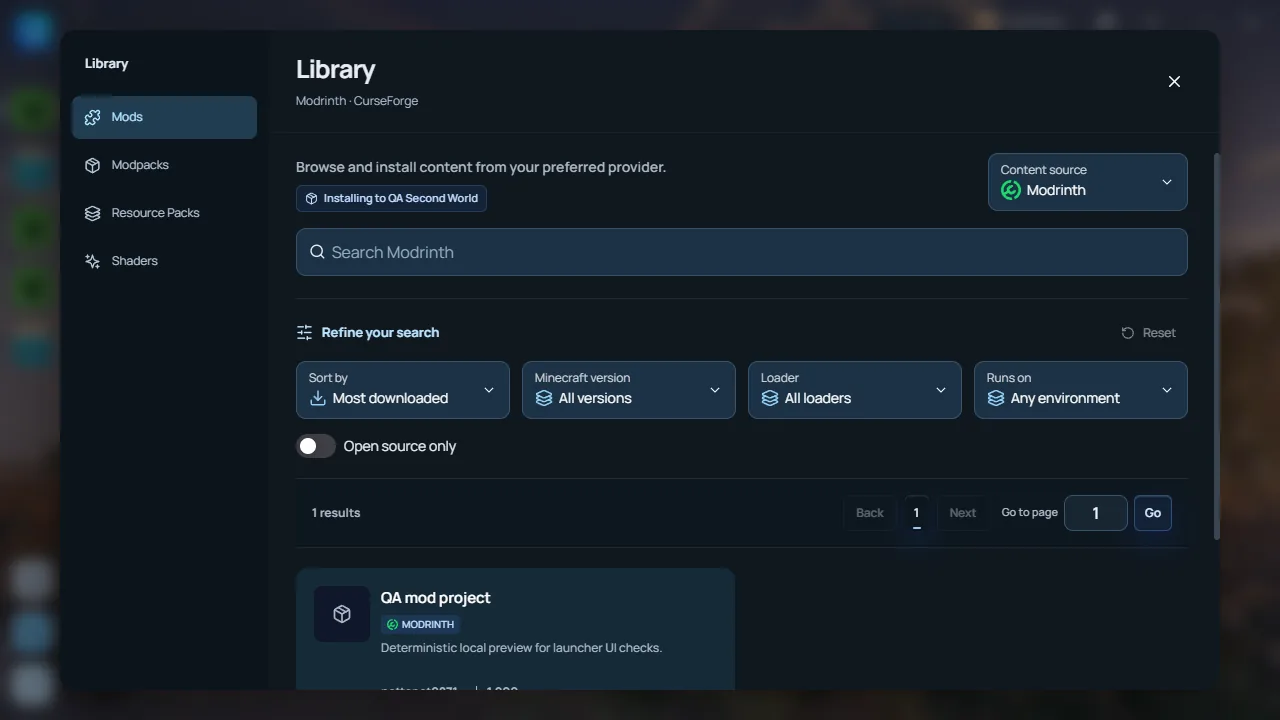
เปลี่ยนอินสแตนซ์กลับเป็นเวอร์ชันที่ม็อดรองรับ หรืออัปเดตม็อดเป็นเวอร์ชันที่ตรงกับอินสแตนซ์ ติดตั้งจาก Library จะกรองให้ตรงเวอร์ชันอัตโนมัติ
Switch the instance back to the version the mods support, or update the mods for this version. Installing from the Library filters to matching versions.
ขาด dependency (Required dependency ... is missing)Missing dependency (Required dependency ... is missing)
ติดตั้งม็อดที่ระบุในข้อความ (เช่น Fabric API, Architectury, Cloth Config) ให้ตรงกับเวอร์ชัน Minecraft และ loader ถ้ามีข้อความว่าเวอร์ชันไม่ตรง (does not satisfy) ให้เปลี่ยนเป็นเวอร์ชันที่กำหนด
Install the mod the message names (for example Fabric API, Architectury, Cloth Config) for your Minecraft and loader version. If it says the installed version does not satisfy the requirement, replace it with the version it asks for.
ม็อดทำ Mixin ไม่สำเร็จ / แครชในโค้ดของม็อดMod failed a Mixin injection / crashed inside a mod
ม็อดที่ระบุไม่เข้ากับเวอร์ชันนี้หรือชนกับม็อดอื่น อัปเดตหรือลบม็อดนั้น แล้วลองใหม่
The named mod does not match this version or conflicts with another mod. Update or remove that mod, then retry.
ResolutionException: Modules minecraft and _1._20._1 export package ...
แพ็ก Forge 1.20.1 บางแพ็กเปิดไม่ขึ้นเพราะไฟล์เกมซ้ำกัน แก้แล้วใน 1.3.21 ให้อัปเดตลันเชอร์ ถ้ายังเกิด ลองติดตั้ง loader ใหม่ใน Instance settings > Installation
Some Forge 1.20.1 packs failed because the game files were loaded twice. Fixed in 1.3.21, so update the launcher. If it continues, reinstall the loader in Instance settings > Installation.
Content file is still in use / EPERM / EBUSY ตอนติดตั้ง เปิด/ปิด หรือลบม็อดwhen installing, turning on/off or removing a mod
ไฟล์ม็อดถูกโปรแกรมอื่นเปิดอยู่ (เกมที่ยังทำงาน หรือแอนติไวรัส) ปิดเกมให้หมดแล้วลองใหม่
Another program (a running game or antivirus) has the mod file open. Close the game completely and try again.
ไม่เจอ error ของคุณ? ส่งรายงานจากในลันเชอร์ หรือถามใน Discord พร้อมแนบ logNot listed here? Send a report from the launcher, or ask in Discord with your log attached.